Law Printing Frequently Asked Questions
Getting Started
From on campus WiFi, install PaperCut
Note: Campus printing is supported on Windows, macOS, Android, and iOS devices. Printing is NOT available on Chromebooks.
Basic Information
Black and white printing is available to all WU students at $.08 per page for single-sided printing, and $.07 per side for double-sided. All students receive a$10.00 print creditat the start ofeach semester(~125 pages). To check your balance, visit your printing account from campus WiFi, and choose "Transaction History." Once your $10 credit is depleted, you will accrue charges monthly.
Printing charges are applied to student accounts at the start of the following month. You can pay print charges through your student account.
Refunds
To request a refund due to a canceled job or printer jam/malfunction, go to your printing account, select "Recent Print Jobs," locate the job, enter a reason, and press "Send." Monitor your account for the status of your request (pending, refunded, or rejected). Requests must be placed before the end of the month.
Refunds are processed on the first business day of the next month, before charges go to Student Accounts.
Known Issues
- A3: On macs printing from Chrome, the paper size sometimes defaults to A3, rather than Letter (generating an error on the printer, which does not contain A3 paper). WITS is currently investigating the scope of the problem. There are two options to fix/bypass:
- Save the document to a pdf, open in Adobe Acrobat or Preview, and print.
- Use the "Print Using System Dialog" option (instructions below).
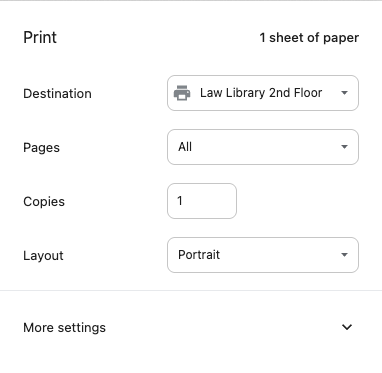 | Click on "More settings" |
 | Click on "Print using system dialog..." |
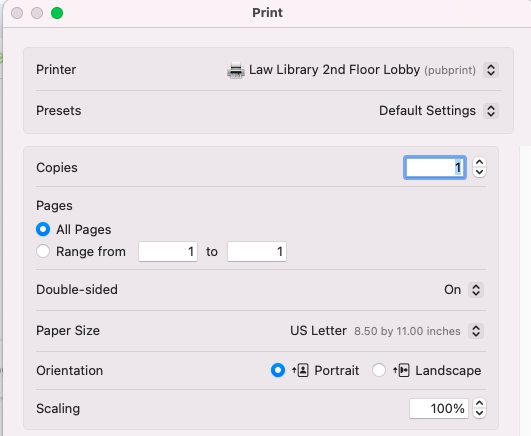 | Choose Law Library printers and verify page size & double or single-sided, then print. |
- Single/Double-Sided: If single-sided printing is desired and not selectable when printing from the Chrome browser, scroll down to get to the "Print Using System Dialog" option.
- "Held for Authentication" error: If you use an Apple device to print and you get an error message that your job is being "Held for Authentication," use this walkthroughto resolve the issues.
Additional Help
Help setting up printing on your device is available directly from PaperCut. For in-person help, visit the WITS Help Desk in Smullin 118 during the following hours:
Monday - Thursday: 8:00am - 7:30pm
Friday: 8:00am - 5:00pm
Additional Information
- For any medical or learning accommodations, contact Accessible Education Services (AES).
- Student Organizations should contact the Office of Student Services for assistance with printing.
- For urgent printing needs outside standard business hours, please visit the Law Library Circulation Desk for assistance.
- For color printing, larger formats, binding, and more, see Print Servicesin the University Services Building (just behind the Law School).
Printing Etiquette
Willamette University supports sustainability. Printers are a shared resource on this campus, and it is very important that each user does their part to be courteous to fellow users and to conserve paper and toner.