Registrar
Registrar / Faculty Information / SAGE Reference for Faculty

SAGE Reference for Faculty

SAGE contains tools useful to faculty and advisors including Student Planning (SAGE for
Advisors), and Course and Grade Rosters (SAGE for Faculty). 

Student Planning is a tool designed to help students plan their path to degree completion.
Students may create a plan for future semesters, schedule course sections, track progress, request review of their plan by their advisor, and register for courses all in one place. Advisors assist along the way by reviewing and approving plans and helping students move planned courses around to ensure timely degree completion.

Table of Contents

SAGE for Advisors

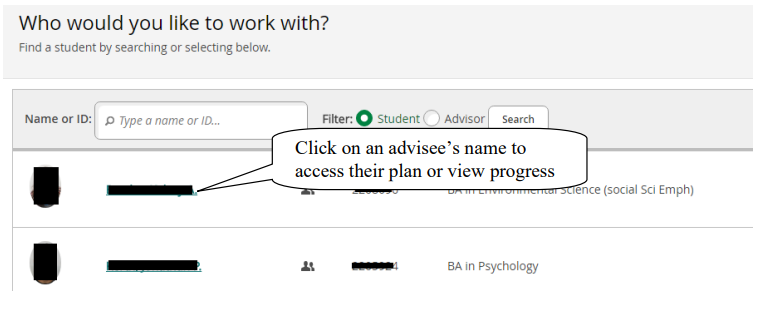
View Your Advisee List

Review Advisee's Overall Progress Toward Degree

View the Completion Status of Each Degree Program Requirement

Review Planned Sections for a Particular Semester

Archive Plans After Review is Complete

Review PDF of Previously Archived Plans

Permit Student to Register for an Upcoming Semester

View a Timeline of Completed, Enrolled, and Planned Courses

Use the Course Catalog

Record Advising Notes

View Unofficial Transcript

View Grades and Grade Point Averages by Semester

SAGE for Faculty

Entering Grades

Entering Faculty Permissions

Log onto Self Service

From the Portal (my.willamette.edu), choose Colleague Self-Service/SAGE.
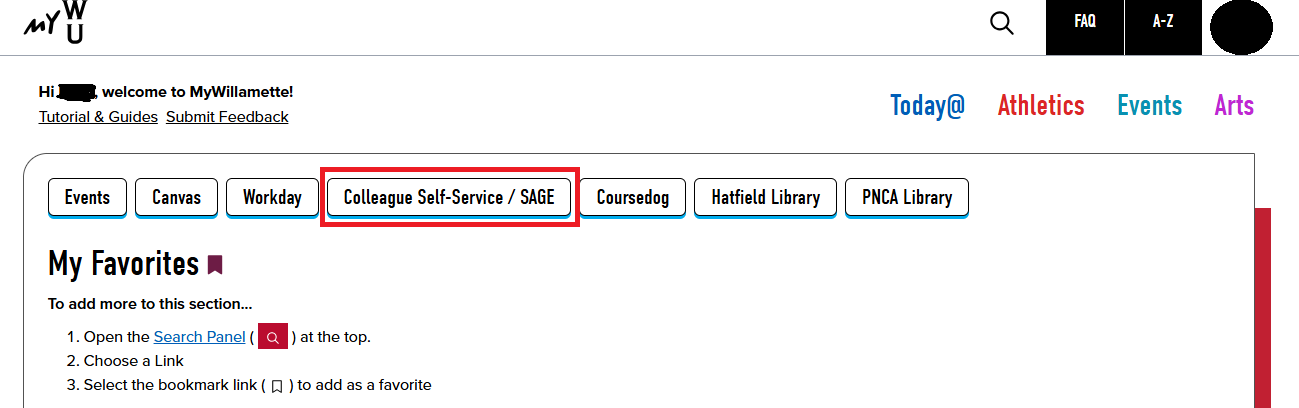
MyWillamette portal, with Colleague Self-Service/SAGE boxed in red.

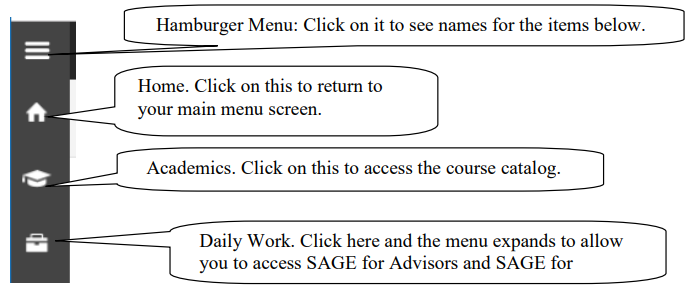
System Layout

Screenshot showing the layout of SAGE for Faculty.

Daily Work

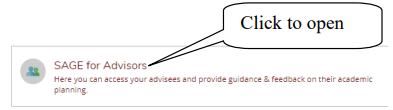
SAGE for Advisors

Screenshot showing where to find the link for SAGE for Advisors.

SAGE for Faculty

Screenshot showing the SAGE for Faculty tab, where faculty can view active classes, submit grades, and submit waivers for students.

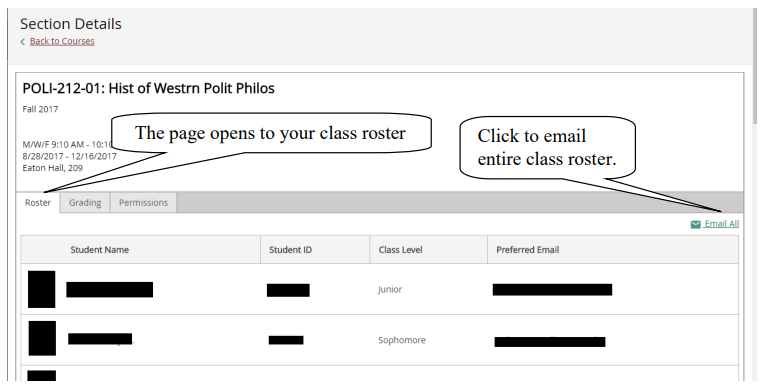
The page will open to a list of your current and future assigned classes.
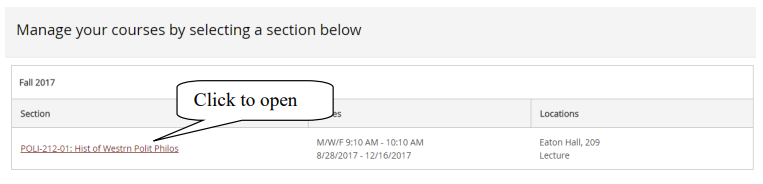
Screenshot showing how to manage current and future assigned classes by clicking on the class link.

 Screenshot showing how to view and email a class roster.

SAGE for Advisors Guide

  • Screenshot showing how to access an advisee's degree plan.
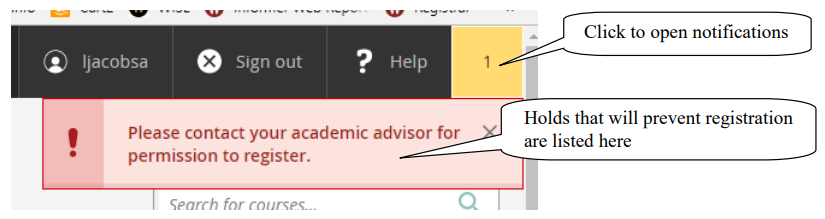
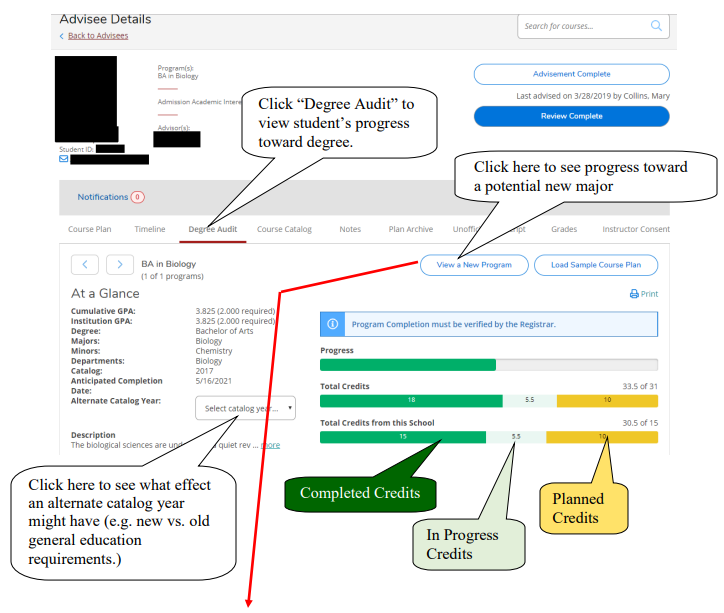
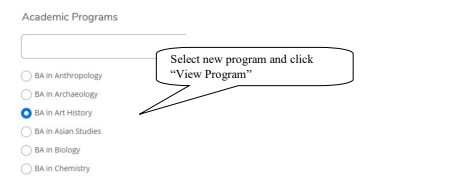
  • Screenshot showing where to locate and view holds that prevent registration.Screenshot showing the "Degree Audit" tab and how to view more details on an advisee's degree progress.Screenshot showing where to select a different academic program.
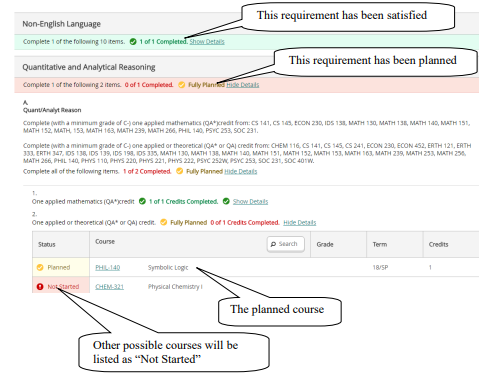
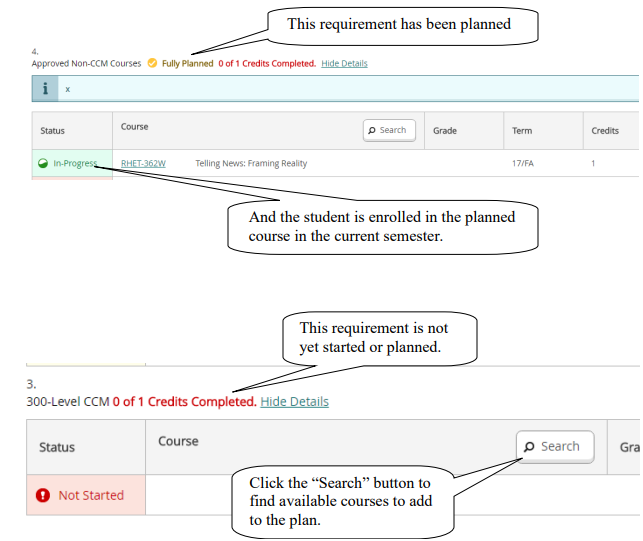
  • Screenshot showing where to view the completion status of each degree program requirement.Screenshot showing the difference between a planned requirement and a requirement that has not yet been started.
  • With Course Plan you may review your advisees’ plans and approve or deny individual courses.
    The advisor’s guidance will be reflected on the student’s view of the plan.

    Note: Denying a course will not prevent the student from registering but rather reflects advisor recommendation. Likewise, the thumbs-up approve is not completing your advising review with the student, so will not lift any advising holds.
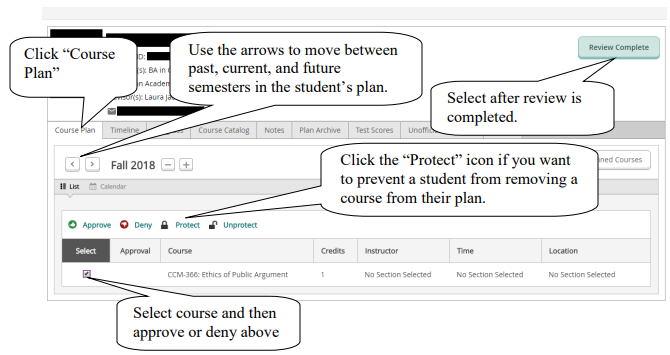
    Screenshot showing where to review planned sections for a particular semester.

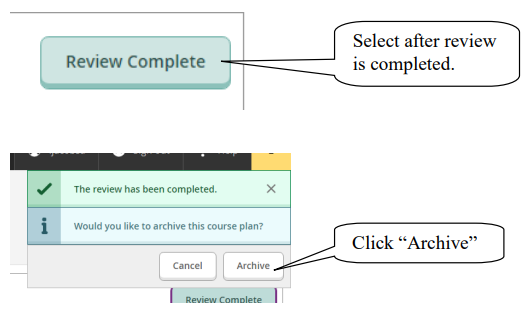
  • Screenshot showing how to archive a plan after review is complete.
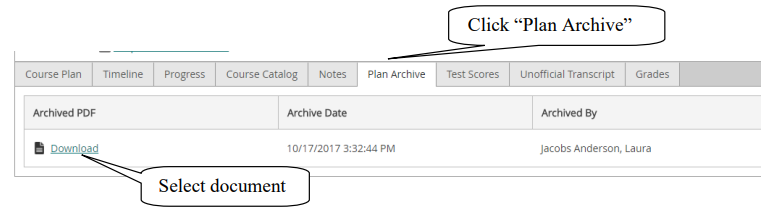
  • Screenshot showing where to view and download a document of an archived course plan.
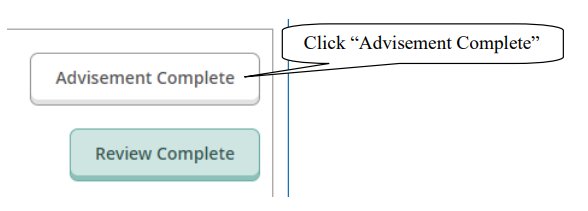
  • Screenshot showing where to click "Advisement Complete" in order to allow a student to register for courses.

    You can confirm completion of this step by going back to your advisee list and seeing that the
    “Last advising date” is updated for the student.

    Screenshot showing how to confirm completion of advisement by checking the latest advising date.

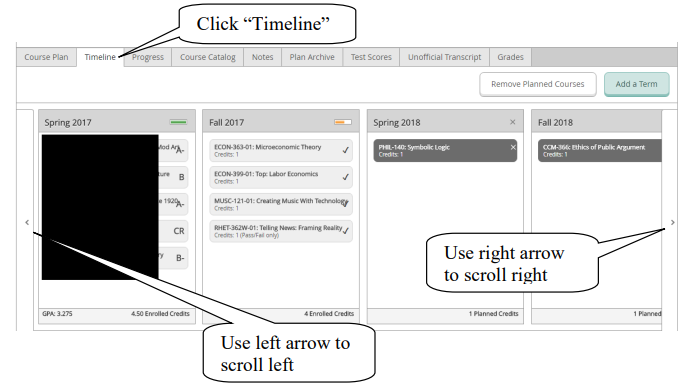
  • Screenshot showing where to view a timeline of completed, enrolled, and planned courses.
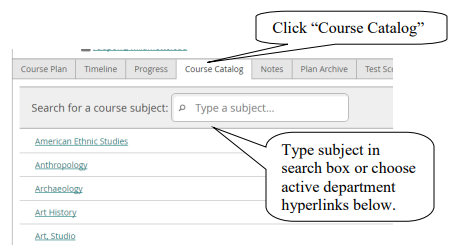
  • Screenshot showing how to search in the Course Catalog.
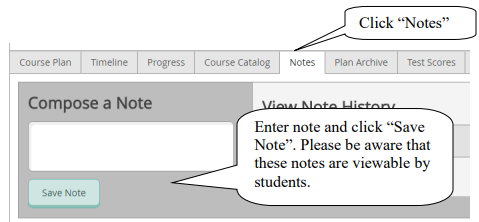
  • Screenshot showing where to record advising notes.

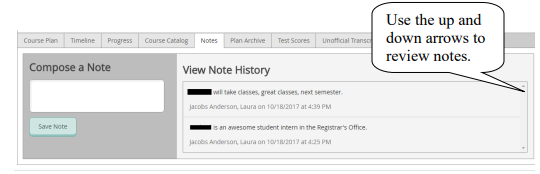
    Screenshot showing how to use the up and down arrows to review advising notes.

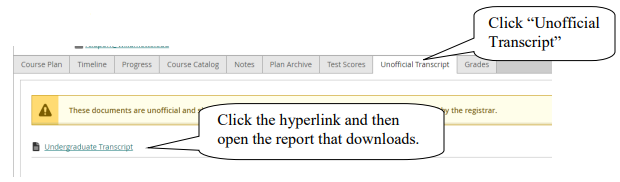
  • Screenshot showing where to view and download an unofficial transcript.

    NOTE: Students are also able to download and print their unofficial transcripts from their side in SAGE.

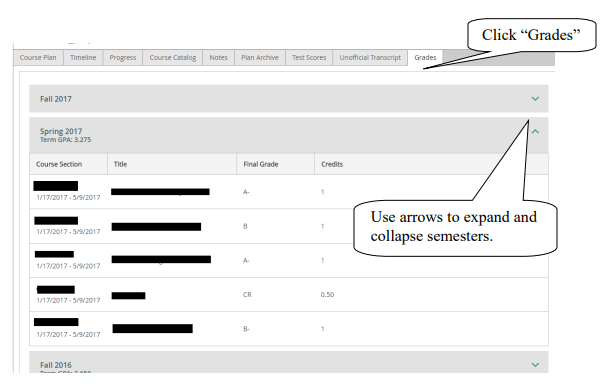
  • Screenshot showing where to view grades and grade point averages by semester.

SAGE for Faculty Guides

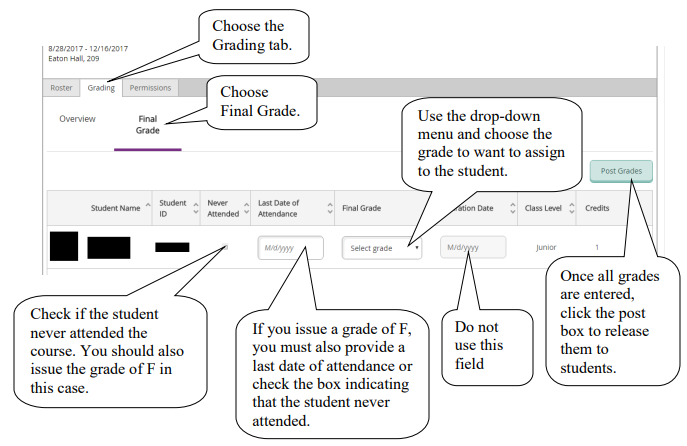
  • Screenshot showing where to enter final grades for a course section.
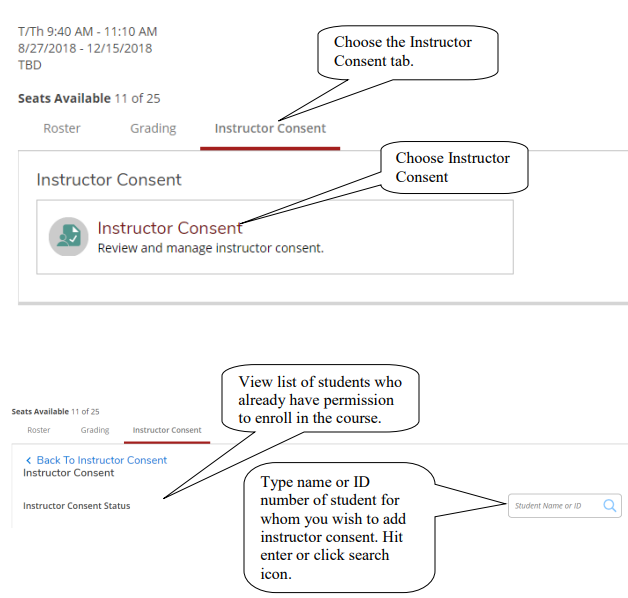
  • Screenshot showing how to add instructor consent for a student.

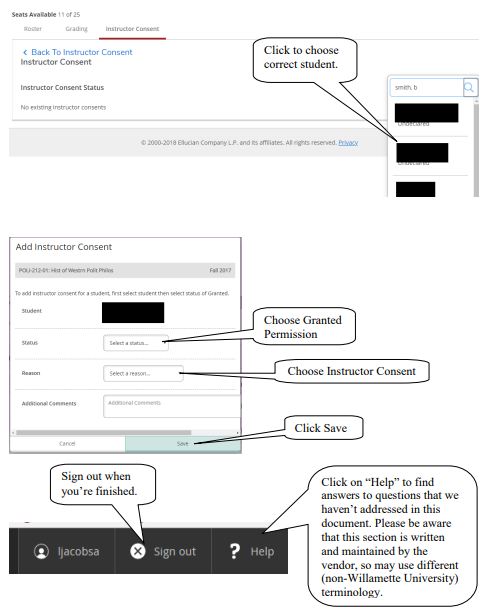
    Screenshot showing how to complete the process of adding instructor consent.