Registrar
Registrar / Faculty Information / SAGE Reference for Faculty

SAGE Reference for Faculty

SAGE contains tools useful to faculty and advisors including Student Planning (SAGE for
Advisors), and Course and Grade Rosters (SAGE for Faculty). 

Student Planning is a tool designed to help students plan their path to degree completion.
Students may create a plan for future semesters, schedule course sections, track progress, request review of their plan by their advisor, and register for courses all in one place. Advisors assist along the way by reviewing and approving plans and helping students move planned courses around to ensure timely degree completion.

Log onto Self Service

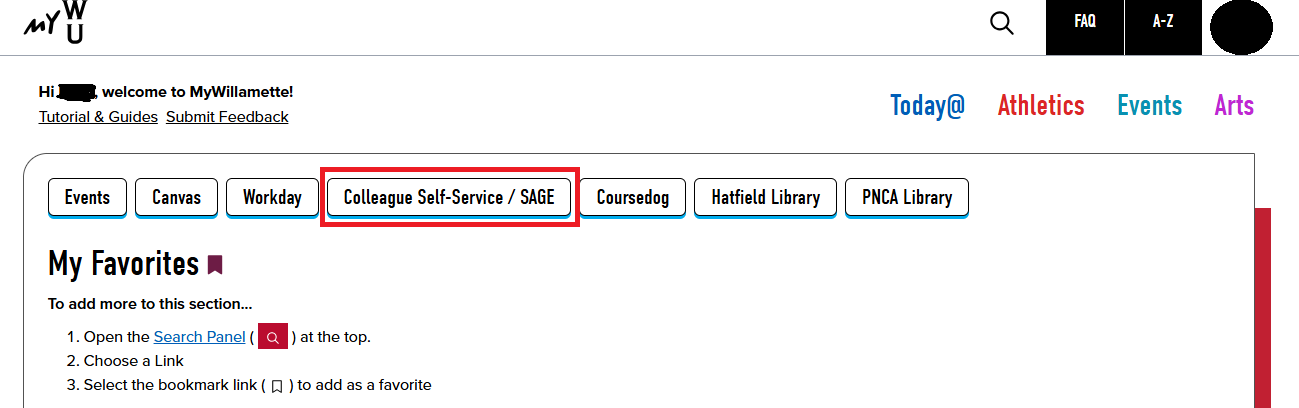
From the Faculty Portal (https://portal.willamette.edu/faculty), choose Colleague Self-Service.

Screenshot showing where to find the link for SAGE for Faculty in the Faculty Portal.

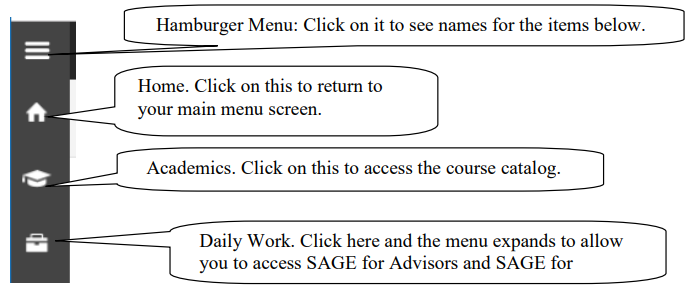
System Layout

Screenshot showing the layout of SAGE for Faculty.

Daily Work

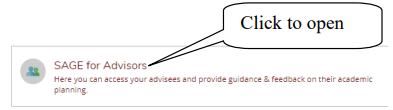
SAGE for Advisors

Screenshot showing where to find the link for SAGE for Advisors.

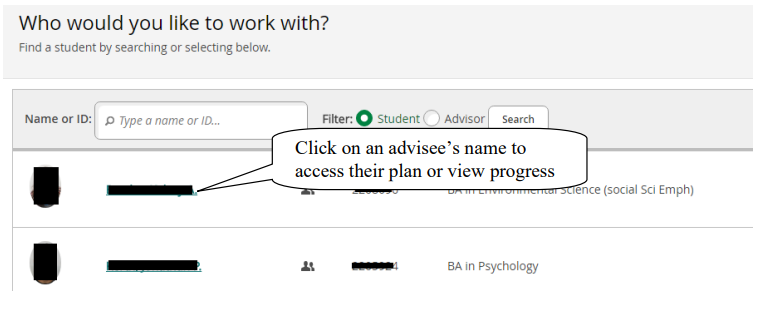
View Your Advisee List

Screenshot showing how to access an advisee's degree plan.

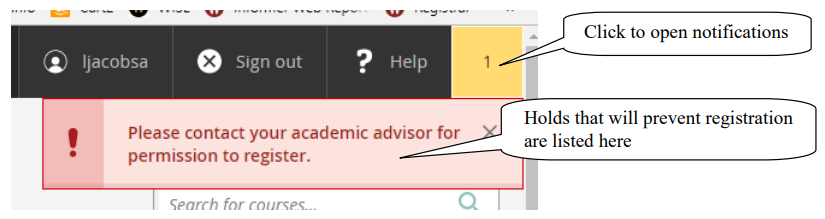
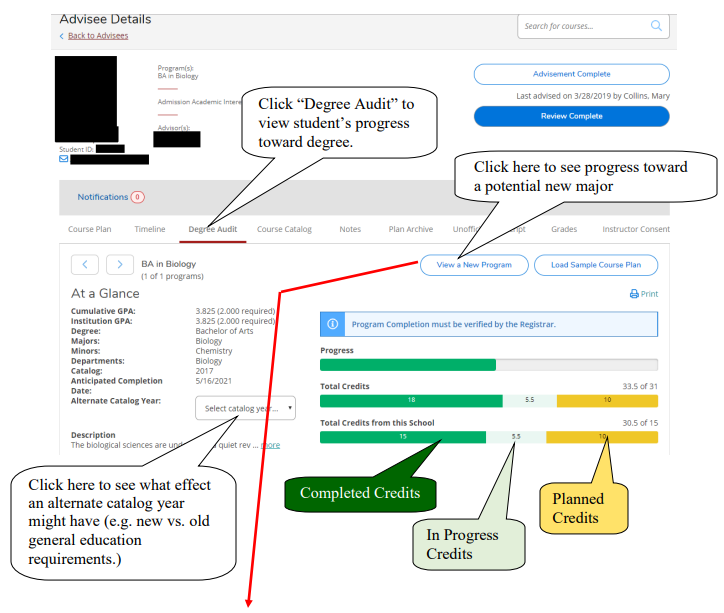
Review Advisee’s Overall Progress Toward Degree

Screenshot showing where to locate and view holds that prevent registration.

Screenshot showing the "Degree Audit" tab and how to view more details on an advisee's degree progress.

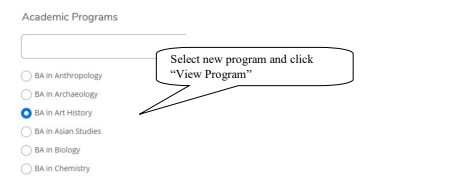
Screenshot showing where to select a different academic program.

View the Completion Status of Each Degree Program Requirement 

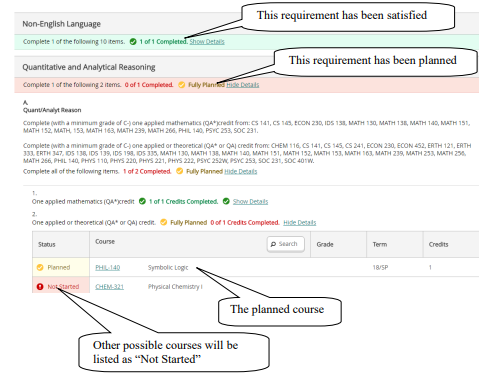
Screenshot showing where to view the completion status of each degree program requirement.

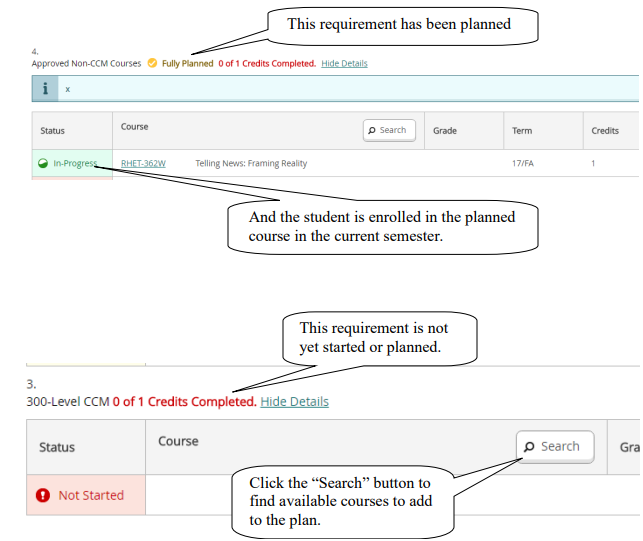
Screenshot showing the difference between a planned requirement and a requirement that has not yet been started.

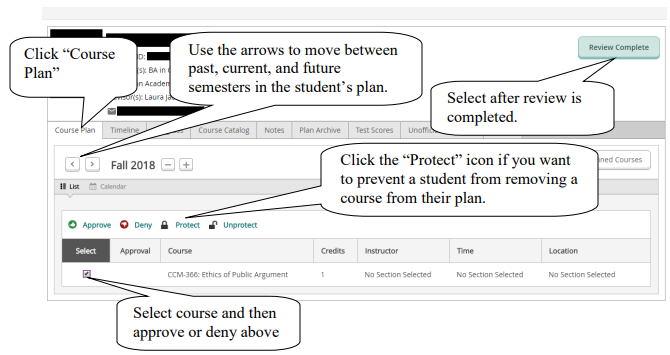
Review Planned Sections for a Particular Semester

With Course Plan you may review your advisees’ plans and approve or deny individual courses.
The advisor’s guidance will be reflected on the student’s view of the plan. Note: Denying a
course will not prevent the student from registering but rather reflects advisor recommendation.

Screenshot showing where to review planned sections for a particular semester.

Archive Plans After Review is Complete

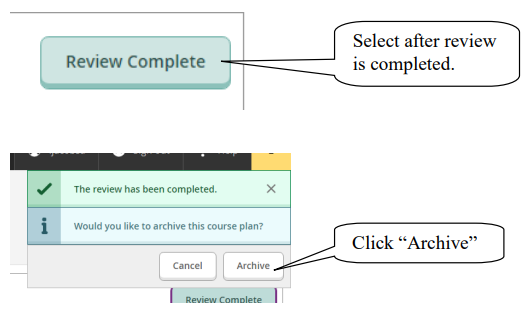
Screenshot showing how to archive a plan after review is complete.

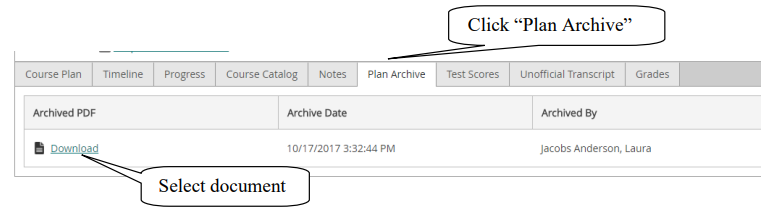
Review pdf of Previously Archived Plans

Screenshot showing where to view and download a document of an archived course plan.

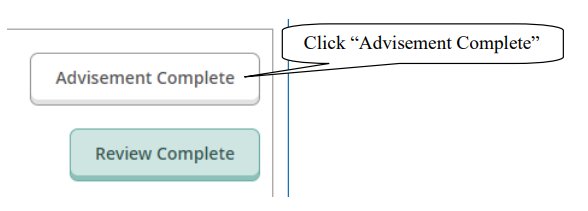
Permit Student to Register for an Upcoming Semester 

Screenshot showing where to click "Advisement Complete" in order to allow a student to register for courses.

You can confirm completion of this step by going back to your advisee list and seeing that the
“Last advising date” is updated for the student.

Screenshot showing how to confirm completion of advisement by checking the latest advising date.

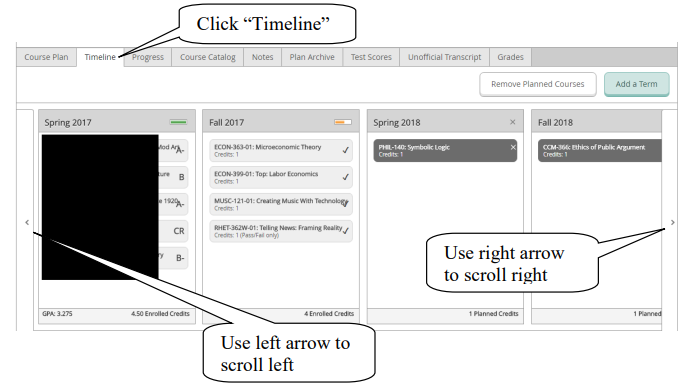
View a Timeline of Completed, Enrolled, and Planned Courses

Screenshot showing where to view a timeline of completed, enrolled, and planned courses.

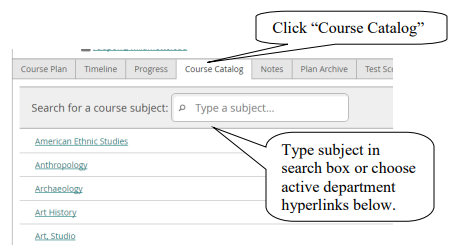
Use the Course Catalog

Screenshot showing how to search in the Course Catalog.

Record Advising Notes

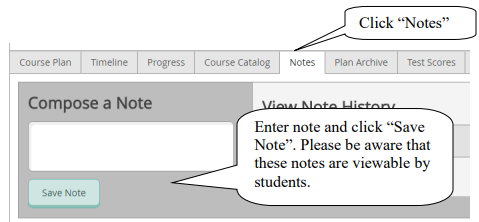
Screenshot showing where to record advising notes.

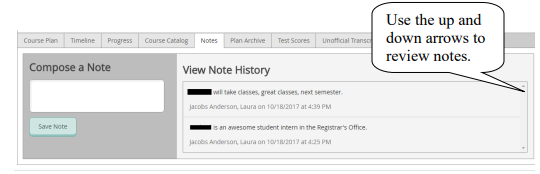
Screenshot showing how to use the up and down arrows to review advising notes.

View Unofficial Transcript

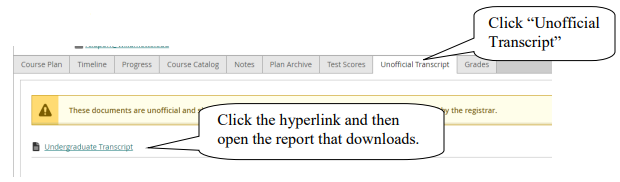
Screenshot showing where to view and download an unofficial transcript.

NOTE: Please do not print and distribute this document to students. Barring any
restrictions on their accounts (e.g. unpaid balance with Student Accounts), students have
access to print this document themselves. 

View Grades and Grade Point Averages by Semester

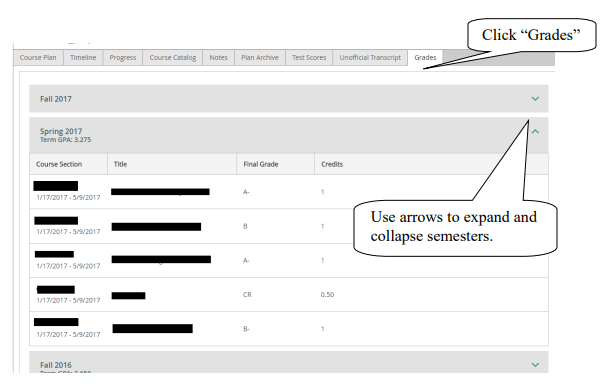
Screenshot showing where to view grades and grade point averages by semester.

SAGE for Faculty

Screenshot showing the SAGE for Faculty tab, where faculty can view active classes, submit grades, and submit waivers for students.

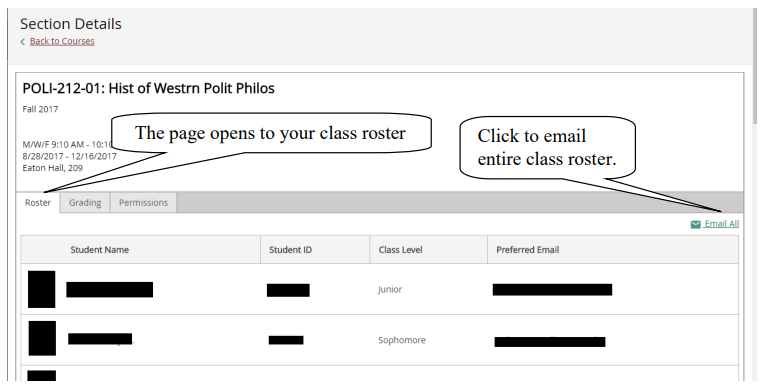
The page will open to a list of your current and future assigned classes.
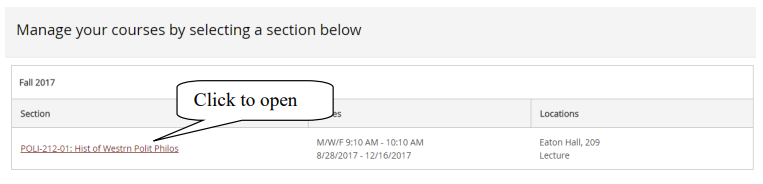
Screenshot showing how to manage current and future assigned classes by clicking on the class link.

 Screenshot showing how to view and email a class roster.

Entering Grades

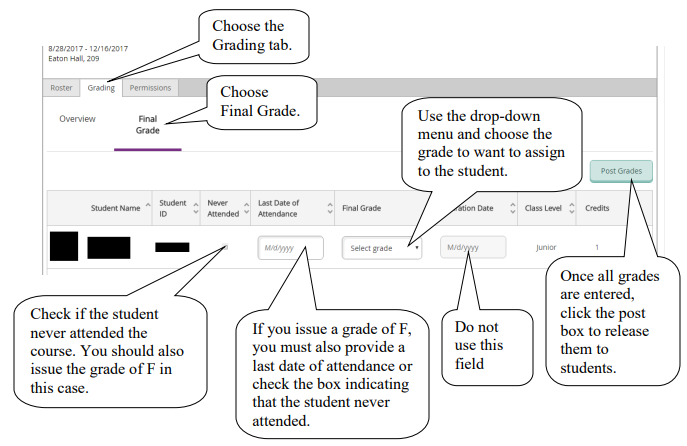
Screenshot showing where to enter final grades for a course section.

Entering Faculty Permissions

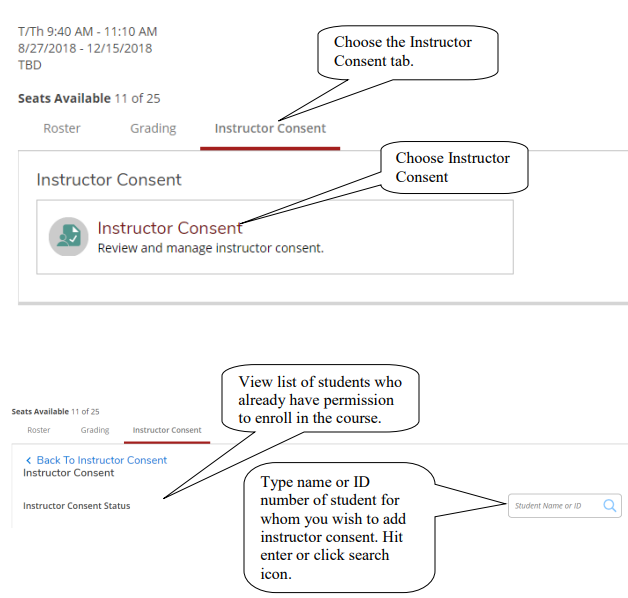
Screenshot showing how to add instructor consent for a student.

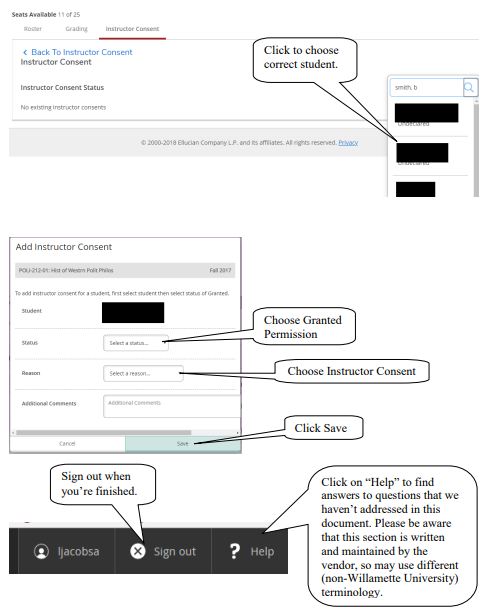
Screenshot showing how to complete the process of adding instructor consent.