Add/Drop Process for Students
How to Add a Class
First, navigate to the class you wish to add from the Course Catalog. In the top, right-hand corner, click "Add Course to Plan."

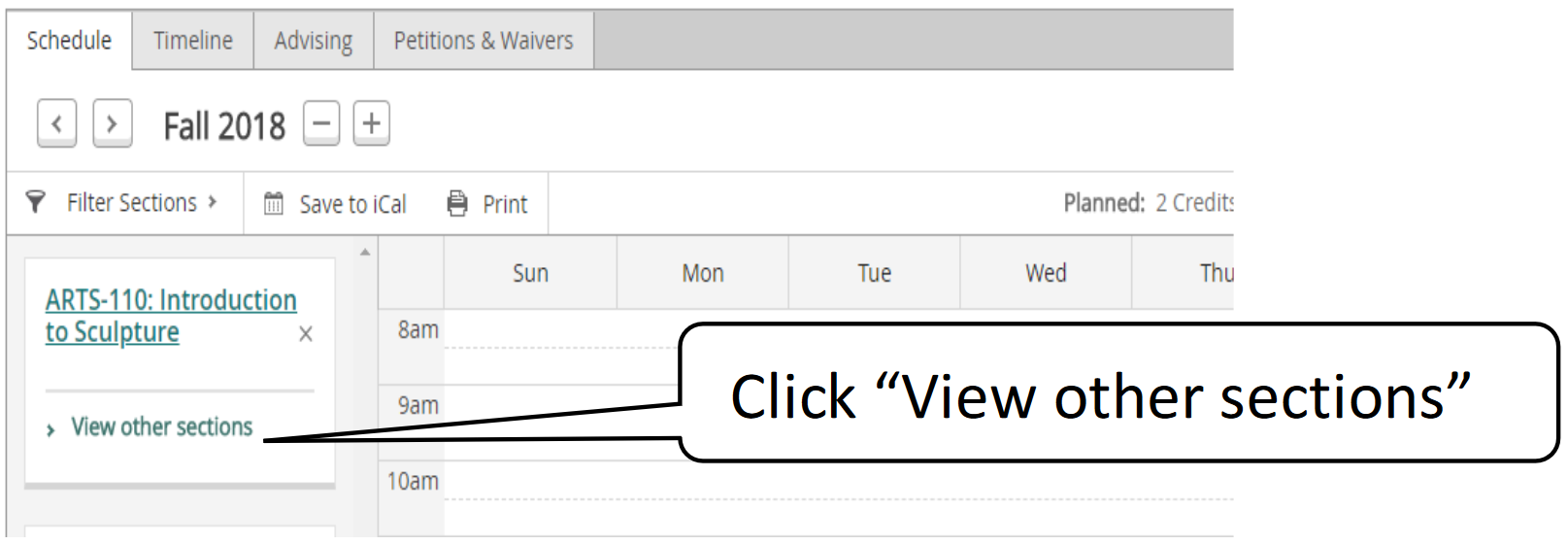
Then, click "View other sections." Scroll over available sections to see how they’ll work on your schedule. Then, click your preferred section.
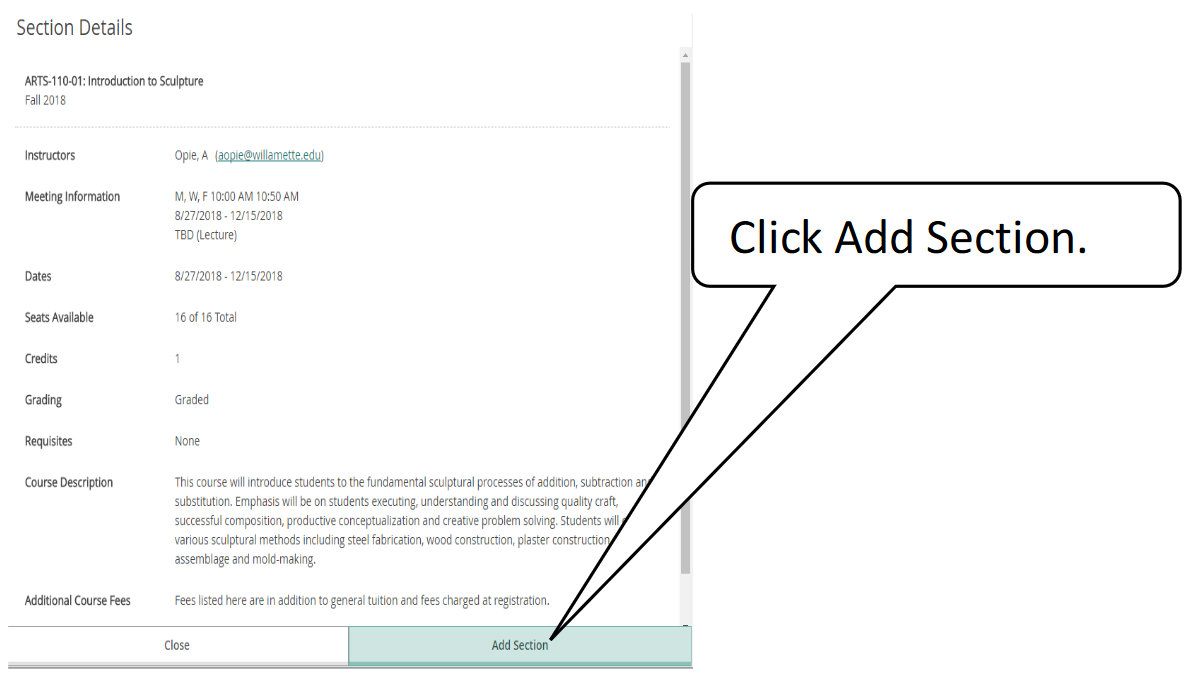
Finally, click "Add Section."
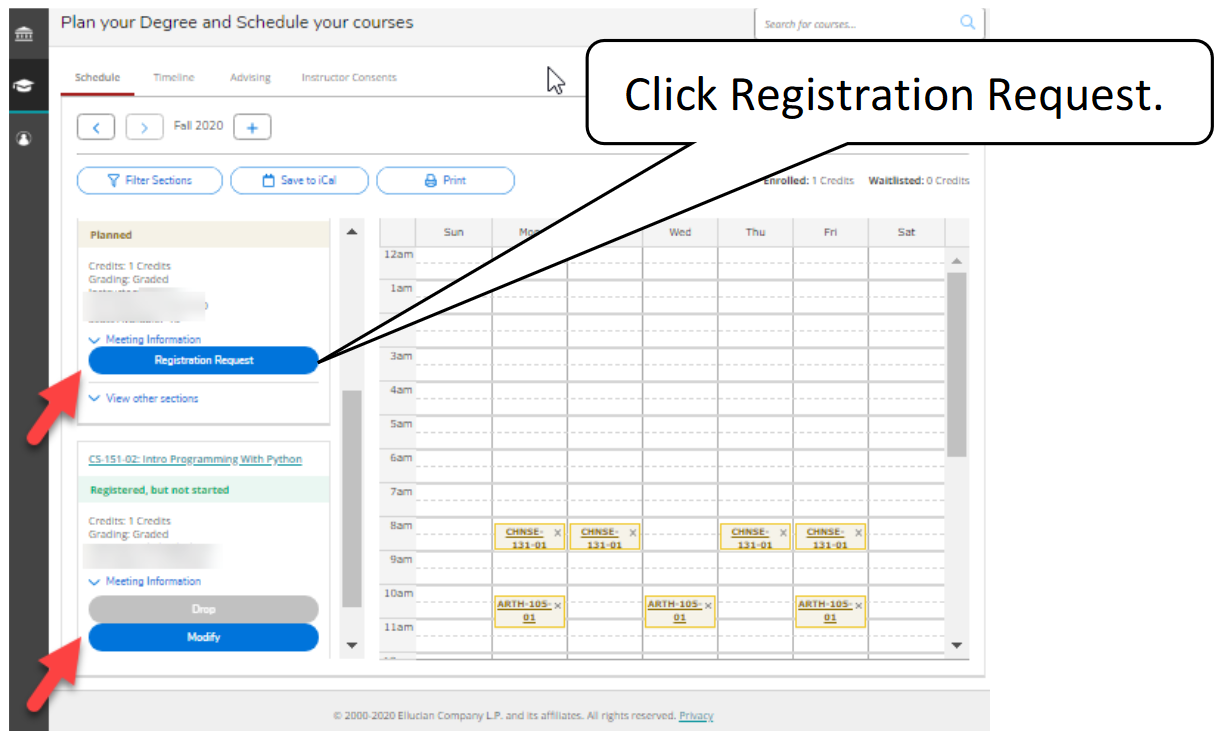
During your registration time, you can click "Add All" on the schedule page. Outside your registration time, you can click "Registration Request."
How to Drop a Class, Change Status From Credit to Audit, or Change the Number of Credits if Applicable
Click “Modify” on the course you would like to drop or change.
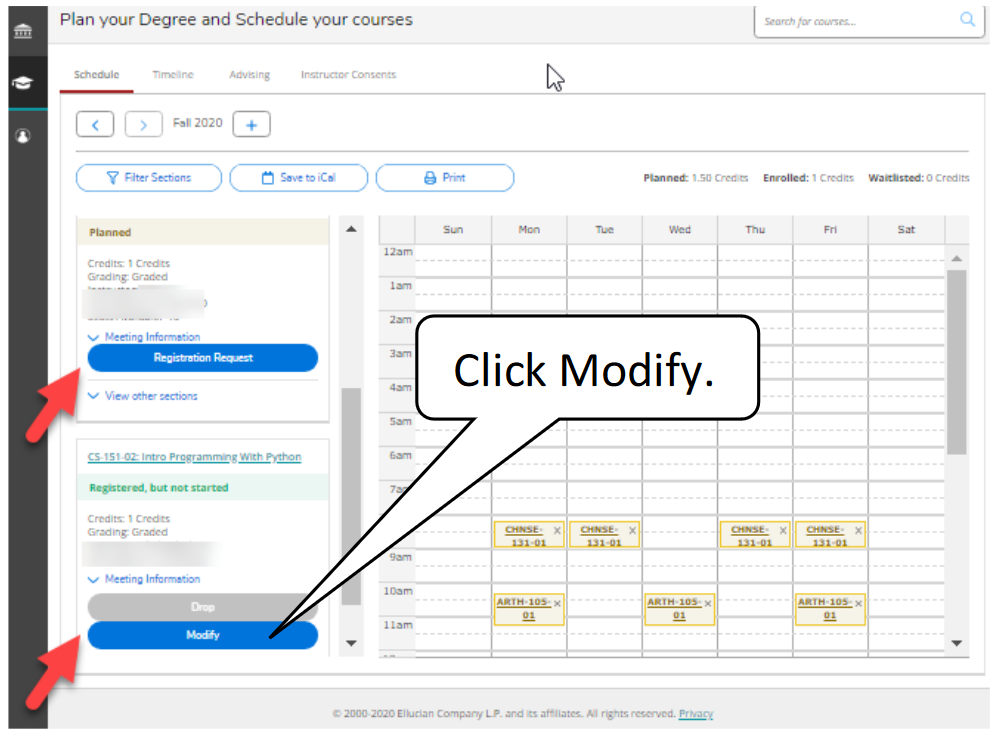
This process handles single-class transactions, so you’ll need to do 2 transactions for co-requisite courses (e.g. a lecture and lab).
You’ll see a form prefilled with your information. Select the advisor to whom we should route your request and a change action if you are doing a Modify transaction. Click "Submit."
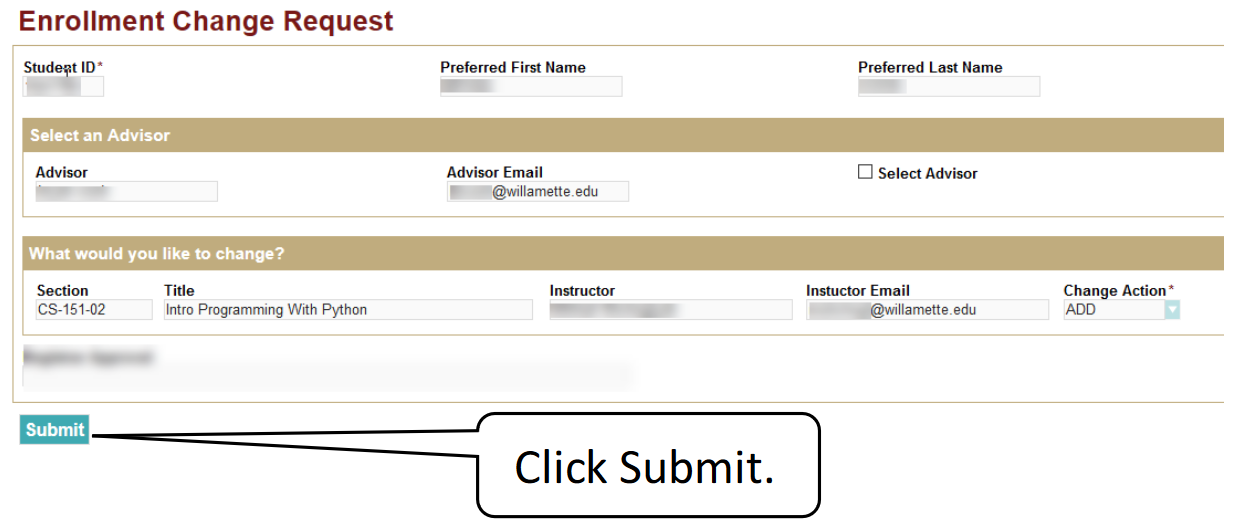
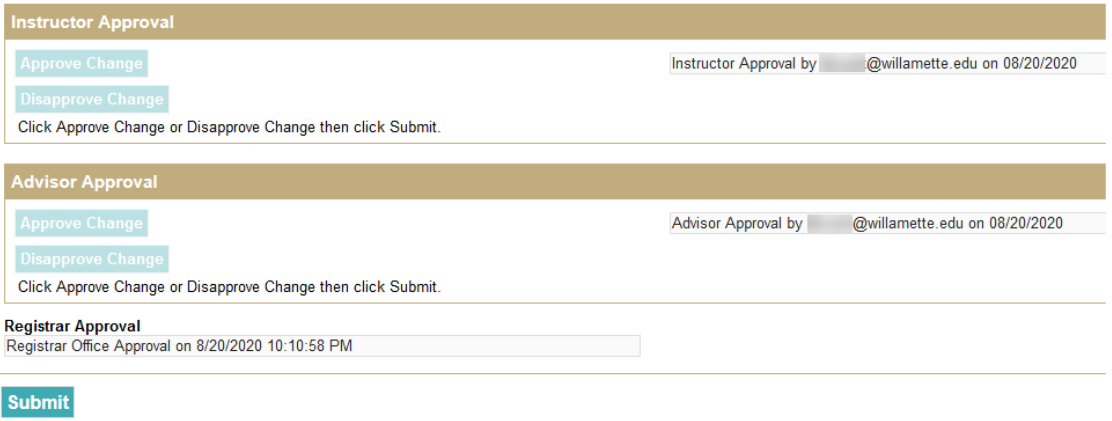
Once submitted, you’ll receive an email with a link to view the request as it moves through our processing workflow. Once processing is complete, you’ll receive an email notification and you’ll see the change on SAGE.