Add/Drop Process for Students
Add/Drop is a process used during the beginning of a term to make final adjustments to your schedule. This process handles single class transactions, so you’ll need to do 2 transactions for co-requisite courses (e.g. a lecture and lab), or if you are attempting to replace one course with another. Please know that this process is manual, and any requested changes will not be reflected right away.
- In SAGE, you will add the course to your plan, please make sure it is for the correct term:

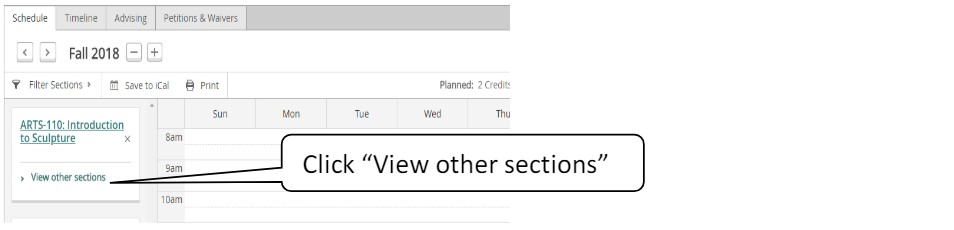
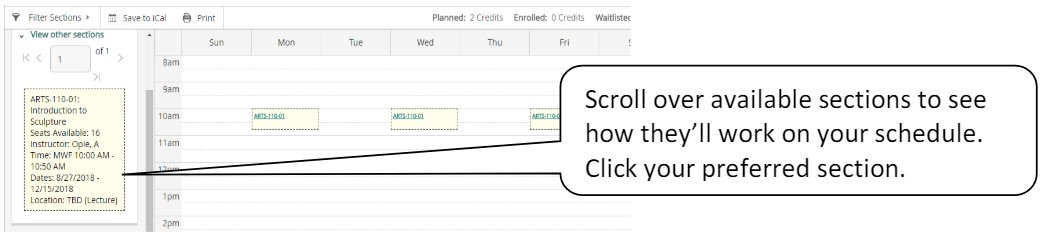
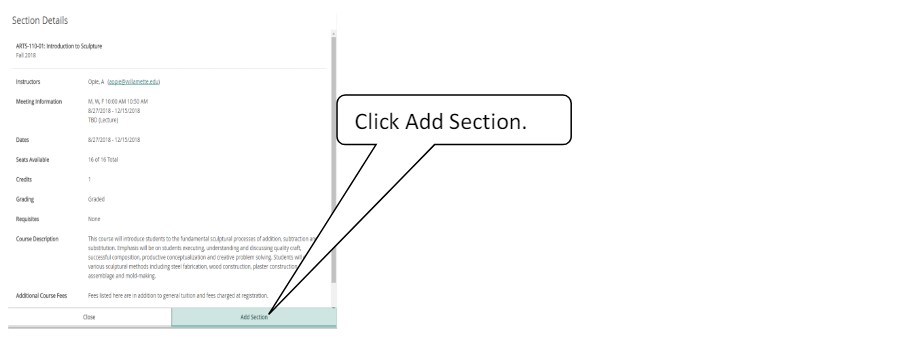
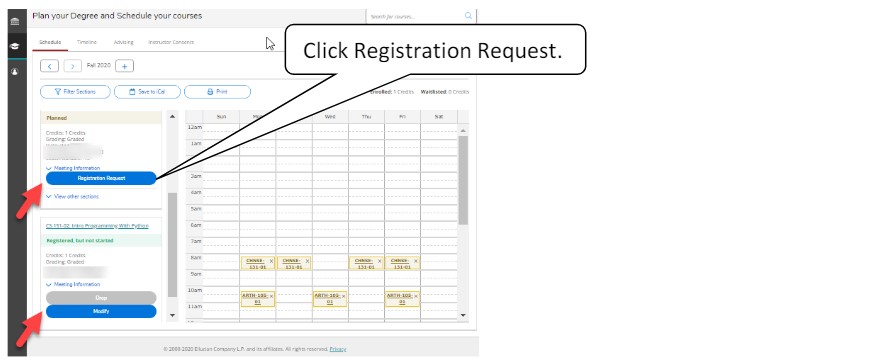
You’ll see a form prefilled with your information. Select the advisor to whom we should route your request to and click the checkbox if you would like to audit the course (this means you would not receive credit for the course), and select Submit.
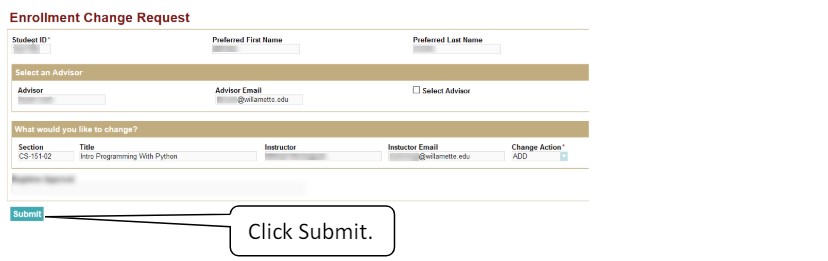
Once submitted, you’ll receive an email with a link to view the request as it moves through our processing workflow. Please note that add requests need to be approved by the instructor, your advisor, and our office to be processed.
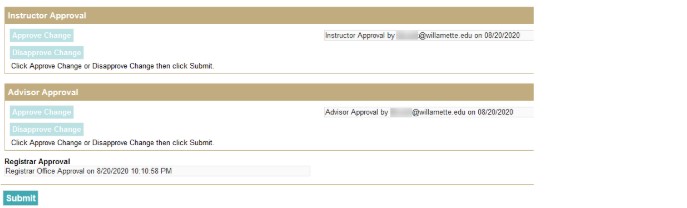
Once processing is complete you’ll receive email notification and you’ll see the change on SAGE.
In SAGE, please go to SAGE for Students, then select "Plan your Degree and Schedule your courses" and scroll to the course you want to drop.
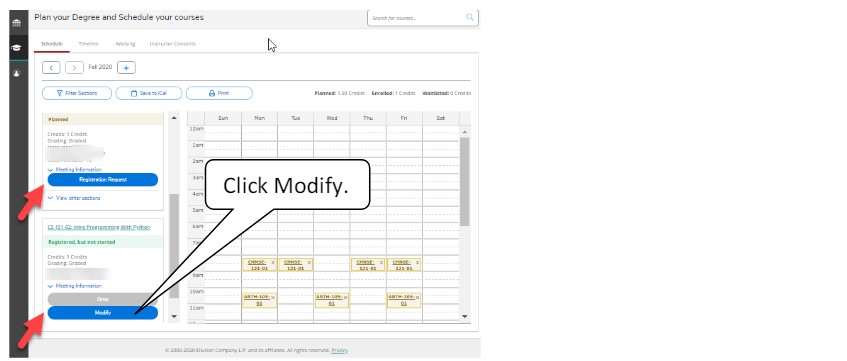
You’ll see a form prefilled with your information. Select the advisor to whom we should route your request to, and then select Submit.
Once submitted, you’ll receive an email with a link to view the request as it moves through our processing workflow. Please note that your request will go to your advisor, and then the Registrar's Office to be processed.
Once processing is complete you’ll receive email notification and you’ll see the change on SAGE.
In SAGE, please go to SAGE for Students, then select "Plan your Degree and Schedule your courses" and scroll to the course you want to audit or change the number of credits you're taking the course for (if applicable).
You’ll see a form prefilled with your information. Select the advisor to whom we should route your request and click the dropdown to select what change you would like to make.
Once submitted, you’ll receive an email with a link to view the request as it moves through our processing workflow. Please note that this change will need to be approved by your instructor, your advisor, and the Registrar's Office in order to be processed.
Once processing is complete you’ll receive email notification and you’ll see the change on SAGE.
Help! I just submitted my change and it's not showing in SAGE! Should I submit another request?
- The Add/Drop/Modify process is manual, so it needs to go to the appropriate parties before it can be processed and show in SAGE. Do not submit another request, as this will just slow down processing time. Please use the link in your confirmation email to see who the request is sitting with to be approved.
I got an email saying my enrollment change was denied, what do I do?
- First, look to see if there is a denial reason. If you submitted multiple requests, any duplicate requests would be denied. This would not undo an approved request.
- Second, if the denial reason has to do with a conflict, please either submit a completed Time Conflict Consent form to the Registrar's Office, or submit another Add request for the course you want, as well as a separate Drop request for the conflicting course, with a comment saying to please process the Add and the Drop together.
- Third, if the denial reason says to contact an office or complete an action, do that.
I'm not in the Canvas yet, what should I do?
- Once you are enrolled in a course, you may not gain access to the Canvas immediately. However, you will be automatically added to the Canvas within 24 hours.
Your steps aren't opening the actual change form, what do I do?
- Try exiting out of SAGE and opening a new, fresh page of SAGE. Sometimes, SAGE does not tell you when a page is expired, and opening a fresh session will allow you to complete your actions.