Cisco Phones - Quick Reference (Salem/GPC)
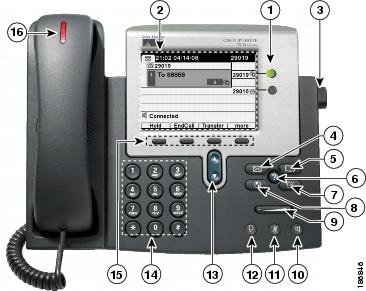
| 1 |
| Depending on configuration, programmable buttons provide access to:
The buttons illuminate to indicate status:
|
| 2 | Phone screen | Shows phone features. |
| 3 | Footstand button | Allows you to adjust the angle of the phone base. |
| 4 |
| Auto-dials your voice message service (varies by service). |
| 5 |
| Opens/closes the Directories menu. Use it to access call logs and directories. |
| 6 |
| Activates the Help menu. |
| 7 |
| Opens/closes the Settings menu. Use it to control phone screen contrast and ring sounds. |
| 8 |
| Opens/closes the Services menu. |
| 9 |
| Controls the handset, headset, and speakerphone volume (off-hook) and the ringer volume (on-hook). |
| 10 |
| Toggles the speakerphone on or off. When the speakerphone is on, the button is lit. |
| 11 |
| Toggles the Mute feature on or off. When Mute is on, the button is lit. |
| 12 |
| Toggles the headset on or off. When the headset is on, the button is lit. |
| 13 |
| Allows you to scroll through menus and highlight items. When the phone is on-hook, displays phone numbers from your Placed Calls log. |
| 14 | Keypad | Allows you to dial phone numbers, enter letters, and choose menu items. |
| 15 |
| Each activates a softkey option (displayed on your phone screen). |
| 16 | Handset light strip | Indicates an incoming call or new voice message. |
 Programmable buttons
 Green, steady - Active call; flashing - Held call
 Amber, steady - Privacy in use; flashing - Incoming call
 Red steady - Remote line in use
 Messages button
 Directories button
 Help button
 Settings button
 Services button
 Volume button
 Speaker button
 Mute button
 Headset button
 Navigation button
 Softkey buttons