Remediating PDF Documents
Before Creating a PDF, Decide if It’s the Best Format
PDFs can present significant accessibility hurdles. Unless they are meticulously tagged and structured, they are often difficult or impossible for screen readers to interpret correctly. Whenever possible, public web content should be published directly as HTML pages rather than downloadable PDFs.
Before exporting to a PDF, ask yourself:
Will people read this content on a phone?
PDFs don't reflow well on small screens. Use HTML web text instead.
Will the document change often?
Every update to a PDF requires re-checking accessibility.
Do readers need to search, copy, or translate text?
Web text handles searchability, copying, and language translation far better than PDF text.
Are you choosing a PDF format simply because it feels more "official"?
Web pages look professional and reach a much broader audience.
Is this document intended primarily for print?
If printing is the primary goal, PDF is the correct format. Keep in mind that making a PDF digitally accessible requires hands-on tagging and verification.
Create an Accessible Source Document
Building accessibility into an original file is much easier than fixing issues in Adobe Acrobat later. Before exporting a PDF, ensure the source document in Microsoft Word, Google Docs, or Adobe InDesign includes:
- Built-in heading styles (Heading 1, Heading 2, etc.)
- Descriptive alternative text (alt text) for images
- Properly formatted lists and simple tables with header rows
- Meaningful, descriptive hyperlink text (avoiding "click here")
- Sufficient color contrast and a logical reading order
- The primary document language specified
Starting with an accessible source document dramatically reduces the amount of manual remediation required after the PDF is generated. For step-by-step instructions, see our Creating Accessible Documents guide.
Export Your PDF Correctly
How you generate a PDF directly affects whether its structural tags survive the export process:
- Always use "Export" or "Save As PDF" whenever possible. Exporting preserves essential accessibility markup, such as heading levels, alt text, and reading order.
- Never use "Print to PDF." Printing flattens the file into a visual representation, stripping away the underlying tags and rendering the document inaccessible.
After exporting, open the file in Adobe Acrobat Pro to verify that the document is tagged, the reading order is logical, and all structure has been preserved. Even PDFs exported from accessible source documents should be reviewed prior to publishing.
Remediating an Existing PDF
PDF remediation is the process of identifying and fixing accessibility issues so a document can be fully navigated and understood by people with disabilities using assistive technologies.
If you are working with an existing PDF that was not created from an accessible source file, you will need to remediate it before publishing. Adobe Acrobat Pro is the industry-standard tool for this process. It helps ensure your documents comply with key accessibility benchmarks, such as the Web Content Accessibility Guidelines (WCAG) and PDF/UA (Universal Accessibility / ISO 14289).
Standard PDF Remediation Process
When remediating a document in Adobe Acrobat Pro, follow these core steps:
PDF tags are invisible, behind-the-scenes codes that structure a document. Every accessible PDF must contain tags that identify headings, paragraphs, lists, tables, images, and other document elements.
How to check PDF tags:
- Open the PDF in Adobe Acrobat Pro.
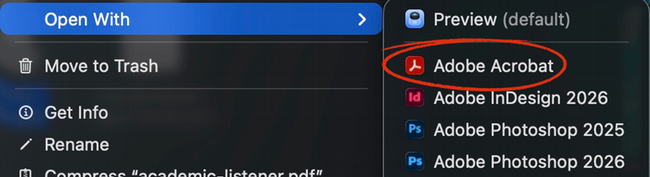
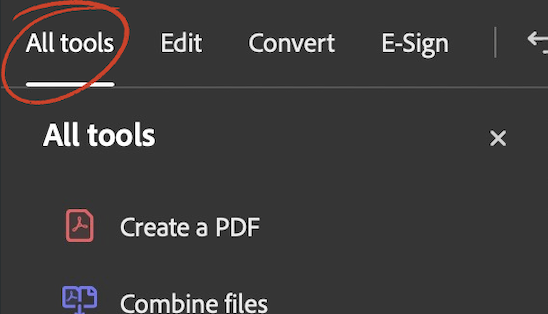
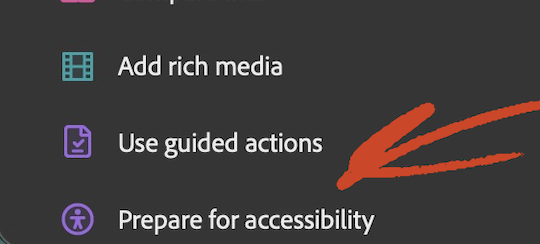
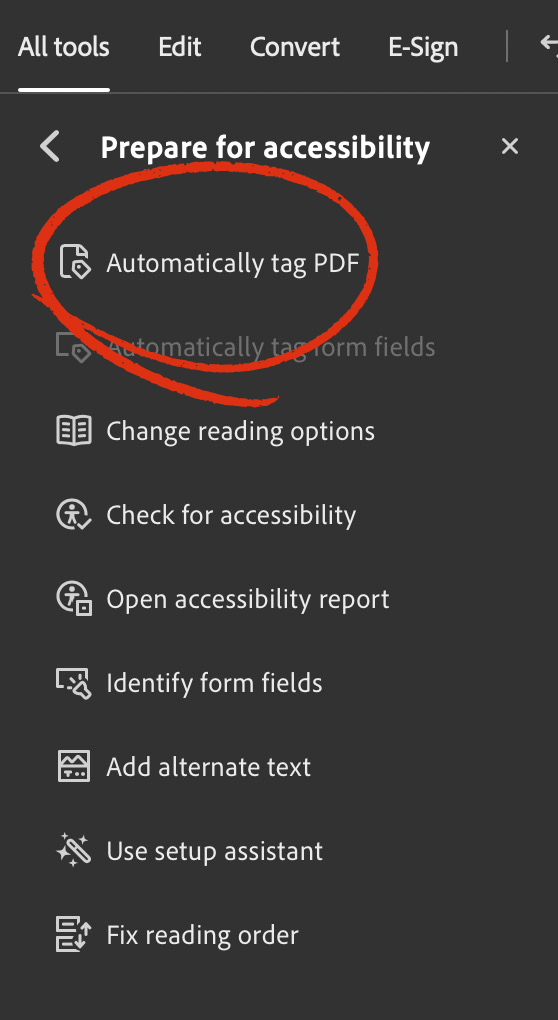
- Select All Tools → Prepare for Accessibility.
- Open the Tags panel.
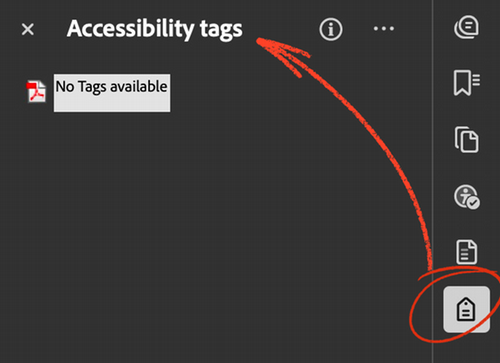
- Verify that the document contains a tag tree.
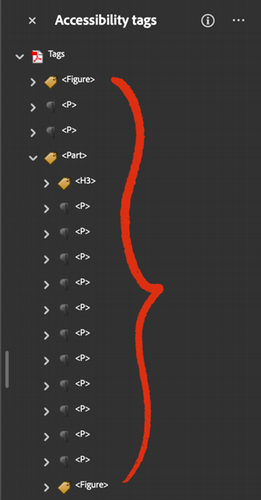
- If no tags exist, select Automatically Tag PDF and review the results.
- Open the PDF in Adobe Acrobat Pro.
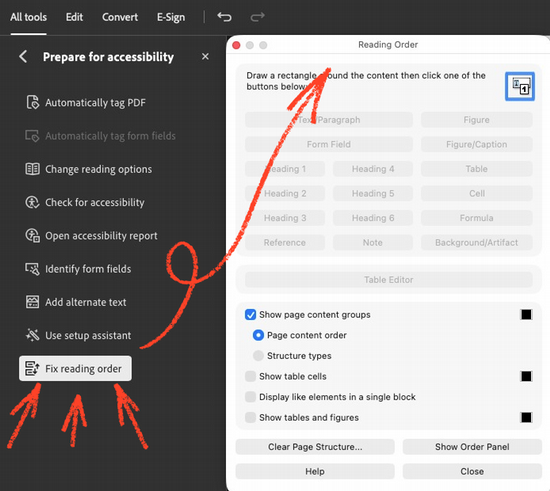
The reading order determines how assistive technologies read the document. A logical reading order is essential for users navigating with screen readers.
How to check the reading order:
- Open the Reading Order tool.
- Review the numbered content regions.
- Ensure the content follows the intended reading sequence.
- Drag or reorder content if necessary.
Document structure provides the framework that organizes content and helps assistive technologies understand how the document is arranged. A well-structured document uses elements such as headings, paragraphs, lists, and links appropriately, making content easier to navigate and understand.
How to check the document structure:
i. Headings
- Open the Tags panel.
- Locate heading tags (H1, H2, etc.).
- Confirm headings follow a logical hierarchy.
- Change incorrect tags using Properties if needed.

ii. Paragraphs
- Review paragraph tags (
<P>). - Ensure body text is tagged as paragraphs.
- Split or merge paragraph tags if necessary.

iii. Lists
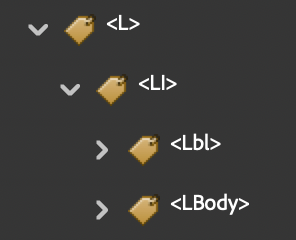
- Locate list tags (
<L>– list,<LI>– list item,<Lbl>– label,<LBody>– list body). - Verify that each list item is properly nested within the list.
- Confirm that each list item contains the appropriate label (
<Lbl>) and list body (<LBody>). - Convert manually typed bullets or numbered lists into tagged lists when needed.
iv. Links
- Open Edit PDF or the Tags panel.
- Verify links are tagged as links.
- Check that link text is descriptive.
- Test each hyperlink.

Images in a PDF need to be identified and described appropriately so that people using assistive technologies can understand the information they convey. Meaningful images should have alternative text, while decorative images should be marked as artifacts so they are ignored by screen readers.
How to check images:
- Open the Tags panel or Accessibility tools.
- Locate the image tag.

- Right-click the image tag and choose "Properties".
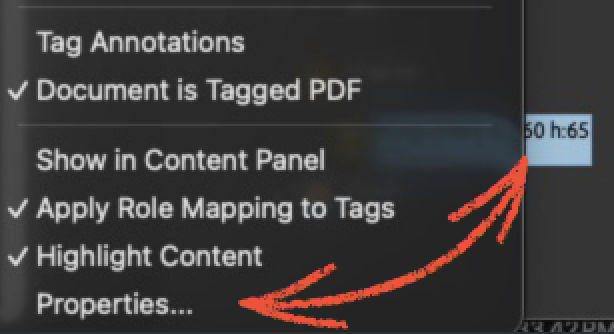
- If the image conveys information, add meaningful alternative text.
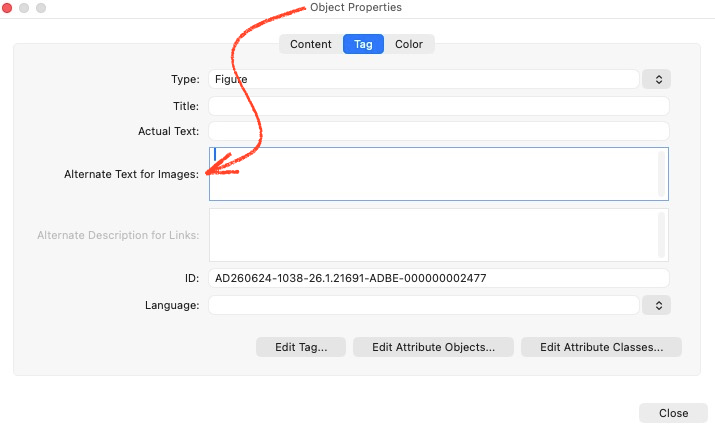
- If the image is decorative, mark it as an "Artifact".
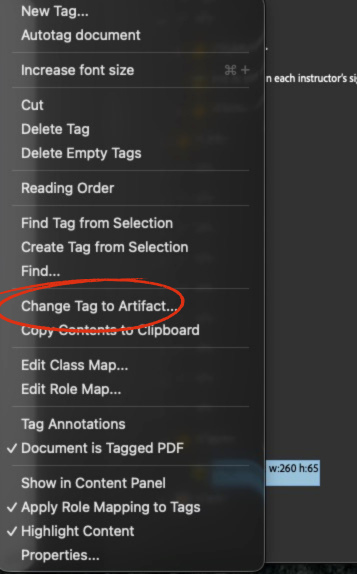
Tables in a PDF should be structured so that assistive technologies can understand the relationships between rows, columns, and header cells. Properly tagged tables help users navigate and understand tabular information in a logical way.
How to check tables:
- Locate the table in the Tags panel.

- Verify the table contains the proper
<Table>,<TR>,<TH>, and<TD>tags.
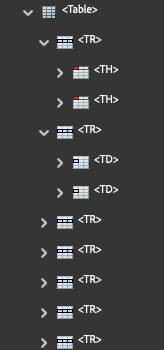
- Check that header cells are identified correctly.
- Use the Table Editor if adjustments are needed.
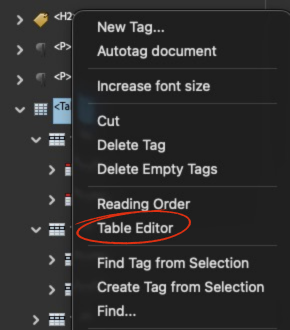
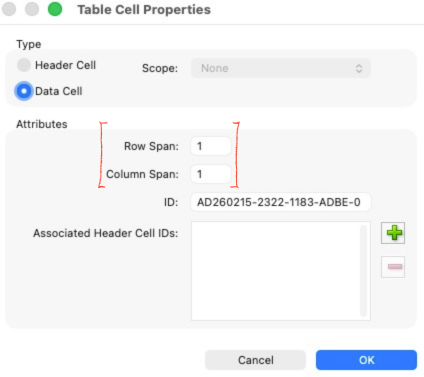
- Resolve Table Regularity issues by correcting Row Span and Column Span values.
- Locate the table in the Tags panel.
Forms in a PDF should be structured so that assistive technologies can identify and navigate each form field. Properly labeled and tagged form fields help users understand what information is required and interact with the form using assistive technologies.
How to check forms:
- Open Prepare Form.
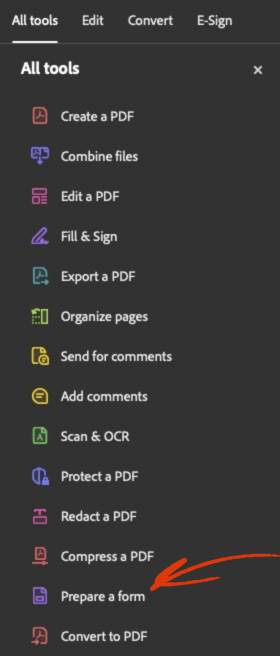
- Review every form field.
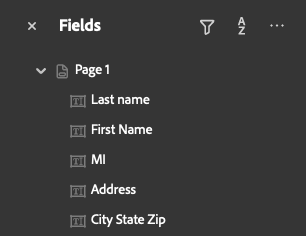
- Add meaningful field labels.
- Verify tab order.
- Ensure the name and tooltip are completed in the text field Properties.
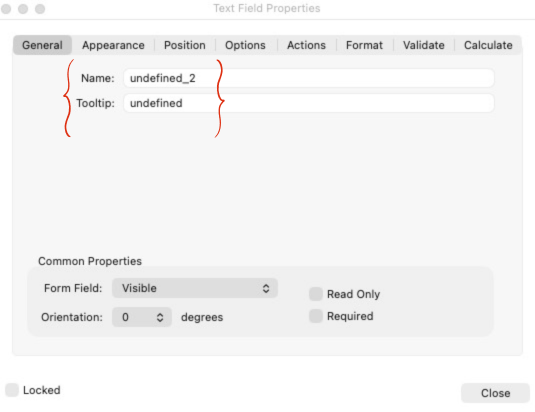
- Test using only the keyboard.
- Open Prepare Form.
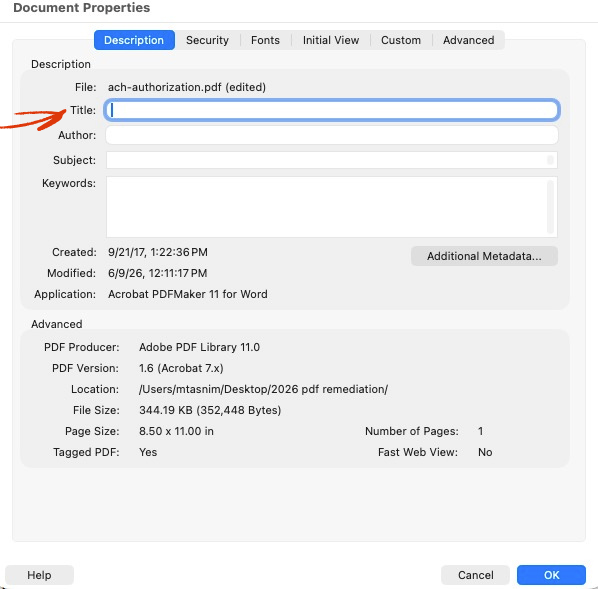
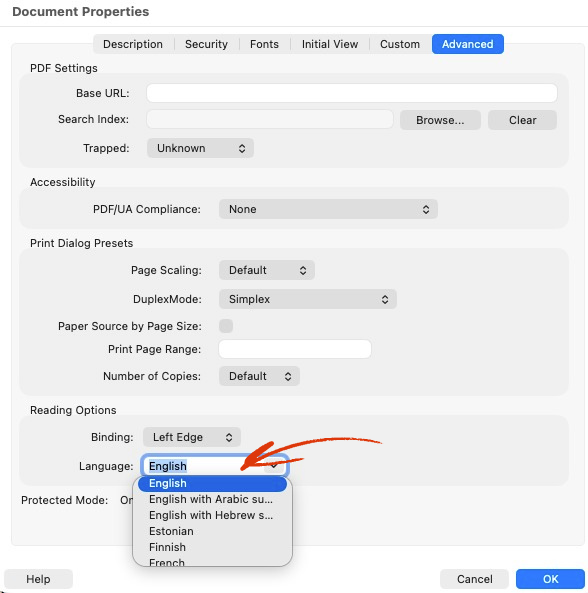
Document metadata provides important information about a PDF, such as its title, author, subject, and language. Accurate metadata helps users identify and understand the document and can also help assistive technologies and other tools process it correctly.
How to check and add document metadata:
- Select File → Properties.
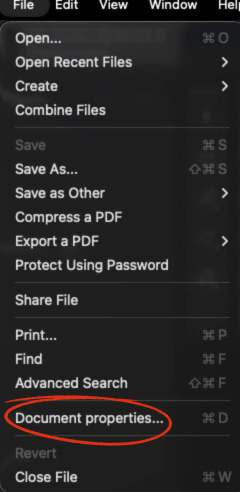
- Add a descriptive title.
- Set the document language.
- Save the document.
- Select File → Properties.
Sufficient color contrast helps ensure that text and other meaningful visual elements can be distinguished from their background. Good contrast makes PDF content easier to read for people with low vision and helps ensure that information is not communicated through color alone.
How to check color contrast:
- Identify text and graphics with low contrast.
- Use a color contrast checker if necessary.
- Update colors until they meet WCAG requirements.
- Ensure information is not communicated by color alone.

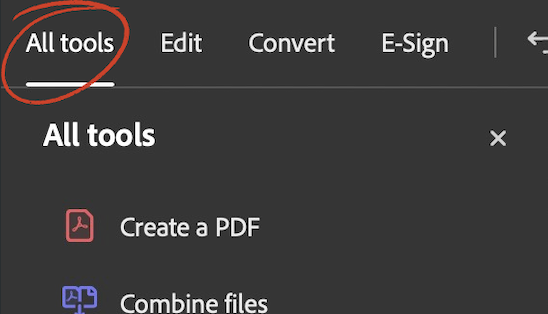
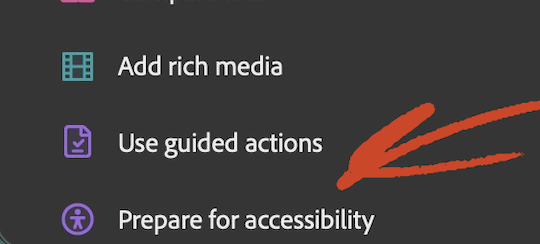
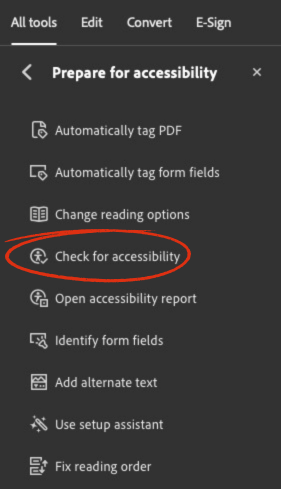
The Accessibility Checker can identify common accessibility issues in a PDF, including missing tags, incorrect reading order, and problems with document structure. Running the checker helps identify issues that may need to be reviewed and corrected before the document is shared.
How to run the Accessibility Checker:
- Open Accessibility → Accessibility Check.
- Select the checks you want to run.
- Review each result.
- Fix any issues.
- Re-run the checker until no remaining issues require attention.
- Open Accessibility → Accessibility Check.
Additional Tips
- Start with an accessible source document.
- Use built-in styles instead of manual formatting.
- Review automatic tags before publishing.
- Test with a keyboard when forms are included.
- Run the Accessibility Checker after every edit.
- If possible, test the document with a screen reader such as VoiceOver.
Resources
- What is an accessible PDF and how to create one | Adobe Acrobat
- Web Content Accessibility Guidelines (WCAG) 2.1
- Usability and Accessibility Issues with PDFs – Web Strategy
- Guidance on Web Accessibility and the ADA
- Usability and Accessibility Issues with PDFs – Web Strategy
- Creating Accessible PDFs | Resource Guide | Digital Accessibility | William & Mary
- Creating Accessible PDFs
- Making Documents Accessible | Columbia
- Create Accessible PDFs | Section508.gov
- Making Documents Accessible | Columbia